
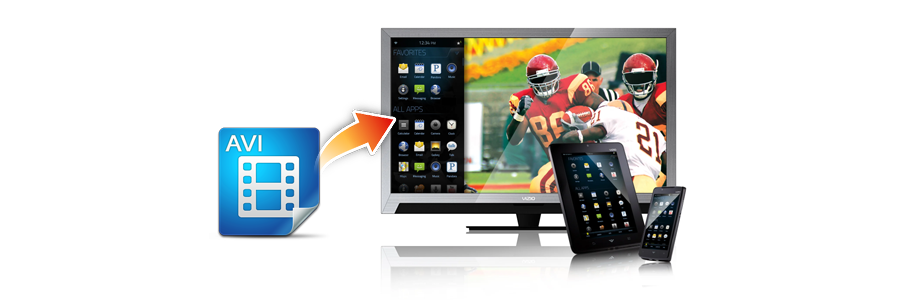
AVI (Audio Video Interleave) is a multimedia container format introduced by Microsoft in 1992 and is still widely used today. The advantage of AVI files is that they interleave audio and video data in a single file, ensuring synchronized playback. However, similar to how iOS devices do not natively support MKV, Android’s native media player does not support AVI. Android’s officially supported video formats mainly include MP4, 3GP, and Matroska (MKV), while formats like AVI and FLV are not on the official support list.
But don’t worry. Just like playing MKV on an iPhone, there are two effective ways to play AVI on Android: converting AVI to an Android‑friendly format (recommended as the first solution), or installing a third‑party media player that supports AVI (direct playback without conversion). This article will guide you through both methods.
Part 1. Can Android Play AVI Files Directly?
The short answer is no.
Android’s native video player does not support AVI. According to Android’s official documentation, natively supported video formats are 3GPP (.3gp) and MPEG‑4 (.mp4). If you try to open an AVI file with the built‑in player, you will likely encounter a “cannot play” error or hear audio without video. This is similar to the issue of playing MKV on an iPhone.
AVI is an older container format that often uses codecs such as DivX or Xvid for compression. These codecs are not pre‑installed on Android devices. Therefore, to play AVI smoothly on Android, you need some additional methods.
Part 2. Method 1 – Convert AVI to MP4 Using Acrok Video Converter Ultimate (Recommended First Solution)
If you prefer using the native Android player or want smaller, more compatible video files, converting AVI to MP4 is an excellent choice. Among many conversion tools, Acrok Video Converter Ultimate is highly recommended for its speed, quality, and ease of use.
Why Acrok Video Converter Ultimate?
- Fast conversion with hardware acceleration support.
- Preserves original quality – converts AVI to MP4 without noticeable quality loss.
- Batch conversion – convert multiple AVI files at once.
- Customizable parameters – adjust resolution, bitrate, frame rate, codec (H.264 recommended for best Android compatibility), etc.
- Additional features – edit videos (cut, crop, merge, add watermark/subtitles) before conversion.
- Wide output formats – supports MP4, MOV, MKV, and many more.
Step‑by‑Step Guide to Convert AVI for Android
1.Download and install Acrok Video Converter Ultimate on your computer (Windows or Mac).
2. Add AVI files – click “Add File” or drag and drop your AVI videos into the program.
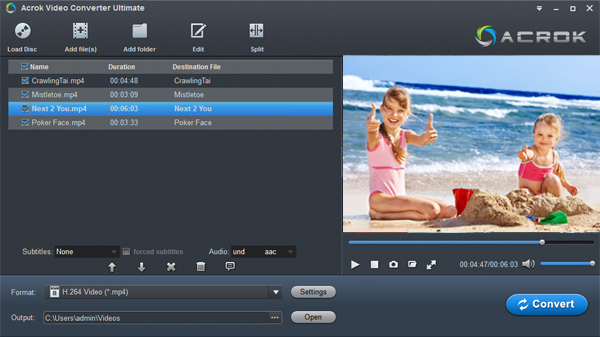
3. Select output format – choose MP4 as the output format. For best compatibility, select the H.264 codec preset (e.g., “MP4 H.264”).

4. Adjust settings (optional) – click the “Settings” button to change video resolution, bitrate, frame rate, or audio parameters. For Android devices, 1920×1080 or 1280×720 is recommended.
5. Choose output folder – specify where to save the converted files.
6. Start conversion – click “Convert” (or “Convert All” for batch) to begin. The conversion is usually very fast.
7. Transfer to Android – after conversion, copy the MP4 files to your Android phone, tablet, or TV via USB cable, cloud storage, or SD card. You can then play them seamlessly with the built‑in player.
Tip: MP4 with H.264 video and AAC audio is the most universally supported format on all Android devices, from older phones to the latest 4K Android TVs.
Powered by leading decryption algorithm, Acrok Video Converter Ultimate can handle any commercial 2D, 3D and 4K Ultra HD Blu-rays protected by AACS, BD+, BD-J, Region Code, Country Code, etc. It supports all disc types, including BD-50, BD-25, BD-9, BD-5, ISO image files, and folders. Besides Blu-ray, it also copes with protected DVDs with CSS, RCE, Sony ArccOS, UOPs, Disney X-project and so on. The ripped files allow for personal backup, flexible editing, and viewing on modern Android phones, Android tablets, and Android TVs with original quality.
Part 3. Method 2 – Play AVI Directly on Android Using Third‑Party Players
If you don’t want to spend time converting files, installing a third‑party universal player is the most convenient alternative. These players have built‑in codecs and can play AVI files directly without any conversion. They work on Android phones, tablets, and most Android TVs.
Here are the best AVI‑compatible players for Android:
1. VLC for Android
- Open source, completely free, no ads.
- Supports almost every video format, including AVI, MKV, MP4, MOV, FLV, etc.
- Built‑in codecs, subtitle support, audio track selection.
- Works perfectly on Android phones, tablets, and Android TV (available on Google Play and Amazon Appstore).
2. XPlayer – Universal Video Player
- Supports all video formats, including AVI, MKV, MP4, MOV, 3GP, FLV, WMV, RMVB.
- Hardware acceleration for 4K ultra HD playback.
- Private folder to hide videos.
- Ideal for phones and tablets.
3. OPlayer Lite
- Supports AVI, MKV, WMV, DivX, Xvid, RMVB, MP4, MOV, etc.
- Direct playback without transcoding.
- Online subtitle download and multiple playback options.
4. VX Player
- Hardware acceleration for HD videos.
- Supports AVI, MP4, MKV, MOV, FLV, and 4K playback.
- Chromecast support, background audio play, picture‑in‑picture (PiP), gesture controls.
5. Arc Player
- Completely free, supports all video formats including AVI.
- 4K UHD playback with hardware acceleration.
- Subtitle import, private folder, floating window, background playback.
6. FTV Player (Freetube)
- Designed for Android tablets and phones, also works on Android TV.
- Supports AVI, MKV, MP4, MOV, 4K video.
- Floating window multitasking, background playback, split‑screen mode.
7. PlayerXtreme Media Player
- Supports over 40 formats including AVI, MKV, MP4, WMV, MOV.
- Direct playback without conversion.
- Powerful subtitle support.
How to use any of these players:
Simply download and install your preferred player from Google Play Store. Open the app, navigate to your AVI file, and tap to play. For Android TV devices, VLC and XPlayer are available on the Google Play Store for TV as well.
Recommendation: VLC is the top choice for most users because it is free, open‑source, ad‑free, and offers unmatched format compatibility.
Summary
To play AVI files on Android phones, tablets, and TVs, you have two reliable methods:
| Method | Pros | Best for |
|---|---|---|
| Convert AVI to MP4 using Acrok Video Converter Ultimate | Native player support; smaller file size; highest compatibility across all Android devices; no need to install extra players | Users who want a clean, unified library and prefer using the system player |
| Install a third‑party player (e.g., VLC) | No conversion needed; one app solves all format problems; instant playback | Users who want a quick, hassle‑free solution and don’t mind using a different player |
If you want the smoothest experience with the native Android player, Acrok Video Converter Ultimate is your best choice – it converts AVI to MP4 quickly while preserving quality. If you prefer not to convert, simply install VLC for Android and start playing AVI files immediately.
Both methods work perfectly on Android phones, Android tablets, and Android TVs. Choose the one that fits your needs. If you have any questions, feel free to leave a comment below!
Tags: play avi video on anroid, watch avi files on android phones, convert avi to android format, play avi movies on android tv

No responses yet