
If you have TS video files that won’t play on your devices or are too large to share, converting them to a common format like MP4 is the best solution. Zamzar is a free online video converter that makes this process quick and easy—no software installation required. Below is a step-by-step guide using Zamzar to convert your TS files.
Why Convert TS Video Files?
TS (Transport Stream) files were originally designed for DVD storage and broadcast services . While they work well for streaming applications, they present several problems for everyday use:
- Limited Compatibility: Most media players and mobile devices don’t natively support TS files
- Large File Size: TS videos take up significantly more storage space than common formats
- Inconvenient for Sharing: The TS format is not ideal for email attachments, social media uploads, or cloud storage
Converting TS to widely supported formats like MP4 solves all these issues. MP4, in particular, is the most universal choice that works on virtually any device—smartphones, tablets, computers, smart TVs, and gaming consoles.
Step-by-Step Guide: Convert TS to MP4 Using Zamzar
Zamzar is a free online TS video converter that works entirely in your web browser. You don’t need to create an account or install any software . Here’s how to use it:
Step 1: Access Zamzar’s TS Converter
Open your web browser and go to Zamzar’s TS converter page at zamzar.com/convert/ts-to-mp4/ . The site supports converting TS to many formats including MP4, MOV, AVI, WMV, WEBM, and more .
Step 2: Upload Your TS File
Click the “Choose Files” button or simply drag and drop your TS file into the upload area .
Important Limitation: The free version has a maximum file size of 50MB . If you need to convert larger files, Zamzar offers paid plans with higher limits.
Step 3: Select Your Output Format
Click the format dropdown menu (which defaults to MP4) and choose your desired output format . Popular options include:
| Format | Best For |
|---|---|
| MP4 | Universal playback on all devices (recommended) |
| MOV | Apple devices and video editing software |
| AVI | Windows media players |
| WMV | Legacy Windows applications |
| WEBM | Web-optimized video |
Step 4: Start the Conversion
Click the “Convert” button (or “Convert Now”) to begin converting your TS file . Zamzar will upload your file and process the conversion—this typically takes anywhere from a few seconds to a few minutes, depending on the file size and server load.
Step 5: Download Your Converted File
Once the conversion completes, a “Download” button will appear. Click it to save your newly converted video file to your computer .
Alternative: Converting TS to Other Formats
While MP4 is the most common choice, Zamzar supports converting TS files to over 25 different formats :
- Video formats: 3GP, 3G2, AVI, FLV, MOV, MP4, MPG, WEBM, WMV
- Audio formats: MP3, AAC, AC3, FLAC, OGG, WAV
- Document formats: PDF, DOC, DOCX, TXT
- Other formats: GIF, JSON, SRT (subtitles)
To convert to a different format, simply select your desired output format in Step 3 .
Tips for Better Conversion Results
Match the Original Video Quality
To get the best output quality, note the original TS file’s resolution and bitrate before converting. Higher resolution and bitrate settings produce larger files, so find the right balance for your needs.
Preview Before Converting
If Zamzar provides preview functionality, use it to check the video before downloading. This helps ensure the conversion worked correctly.
Batch Conversion
Zamzar supports converting multiple files at once. You can add several TS files to the queue and convert them together to save time .
Zamzar vs. Desktop Converters: Which Should You Choose?
| Feature | Zamzar (Online) | Desktop Converter |
|---|---|---|
| Installation | None required | Must download & install |
| File Size Limit | 50MB (free) | No limit |
| Speed | Depends on internet speed | Hardware accelerated |
| Privacy | Files uploaded to servers | 100% local processing |
| Batch Conversion | Basic support | Full support |
| Best For | Quick, occasional conversions | Regular, large-file conversions |
For occasional conversion of small TS files (under 50MB), Zamzar is perfect—it’s free, fast, and hassle-free. If you regularly work with large TS video files or need to convert in bulk, consider a desktop TS video converter software instead.
Allow me to recommend a desktop application: Acrok Video Converter Ultimate. With Acrok Video Converter Ultimate, you can effortlessly convert TS videos to your desired format without any file size restrictions. Unlike online converters, there’s no need to manually download the converted files — everything is automatically saved directly to a folder on your computer.
Free download and try the idea TS to MP4 Converter
How to convert TS to MP4 with Acrok Video Converter Ultimate?
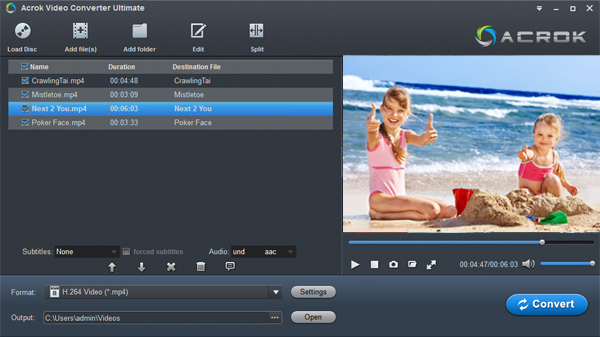
Step 1: Install and run Acrok software as the best TS Video Converter.Click “Add file” icon to load your TS files.
Step 2: Set MP4 as the output format
To convert TS files to MP4 format, please click “Fomrat” bar then select H.264 MP4 under Common Video category.

Step 3: Start TS to MP4 conversion
Hit “Convert” button and it will begin fast video decoding, conversion and processing your TS video to MP4 format on the PC.
Conclusion
Converting TS video files to common formats like MP4 doesn’t have to be complicated. With Zamzar’s free online TS video converter, you can convert TS to MP4, MOV, AVI, or other formats in just three simple steps:
- Upload your TS file (max 50MB on free plan)
- Choose your output format
- Download your converted video
The service requires no registration, no software installation, and works entirely in your browser. While the file size limitation means it’s best for smaller TS files, it’s an excellent free solution for quick conversions.
For best results, always check the original video parameters (resolution, bitrate) before converting to ensure output quality matches your expectations. And remember—if you need to convert larger TS videos regularly, a dedicated Acrok TS video converter might be a better long-term investment.

No responses yet