

How to convert .R3D to ProRes MOV format for Final Cut Pro? In this article you will get the Red R3D Video Converter on Mac; it can help you convert R3D format files to Final Cut Pro supported Apple ProRes codec for editing. Please read on.
R3D format is a file format that is mainly recorded by Red camcorders. This is an advanced file format that efficiently encodes measurements from a camera’s digital sensor in a way that maximizes post‑production capabilities. From the Red official website you can learn that R3D files can be converted later to benefit from future improvements in RAW development software. This format can overcome FAT32 and other partition limitations because it can be split into files under 4GB. Besides, the Red R3D format is not subject to the royalty fees required by other formats, including H.264 (if not for an end‑user).
Red R3D Video Converter
As an advanced file format, most users are not familiar with the R3D format, and they don’t know how to use this format perfectly when they need to edit R3D files with Final Cut Pro, DaVinci Resolve, Avid Media Composer, Premiere Pro, Vegas Pro, etc. There are a few users who have encountered Red R3D video editing issues; they found that Final Cut Pro can’t support Red R3D videos. In this case, the most effective way to import Red R3D videos to Final Cut Pro is to convert .R3D to ProRes MOV format, because the Apple ProRes codec MOV format is a natively supported video format of Final Cut Pro. With this format you won’t have any importing and editing problems. Here we would like to recommend the best 4K video converter for Red R3D files. The software is called Acrok Video Converter Ultimate for Mac. With this Red R3D video converter you can easily convert .R3D to ProRes MOV for Final Cut Pro, or convert R3D files to DNxHD for Avid MC, or convert R3D files for Adobe Premiere Pro, etc. Now you can try this powerful Red R3D Video Converter to convert 4K video on Mac.
Convert .R3D to ProRes MOV for Final Cut Pro
It is not complicated to convert .R3D to ProRes MOV for Final Cut Pro with this 4K video converter. We have prepared the easy steps below . You can use this Red R3D video converter to convert 4K video on Mac within a few clicks. Now please follow the steps to convert .R3D to ProRes MOV for Final Cut Pro. You can also use it to convert 4K video on Mac to other formats; the steps are nearly the same.
1. Download this Red R3D Video Converter (aka Acrok Video Converter Ultimate for Mac) and install this program on your MacBook or iMac. If you want to convert Red R3D files on a Windows computer, you can also download the Windows version. Both the Windows version and the Mac version can help you convert R3D to ProRes MOV or other formats.
2. Launch this Red R3D 4K video converter. Click the “Add Files” button on the top left corner to import the R3D files that you want to convert. You can add batch files at one time; batch loading and converting are supported by this Red R3D video converter.
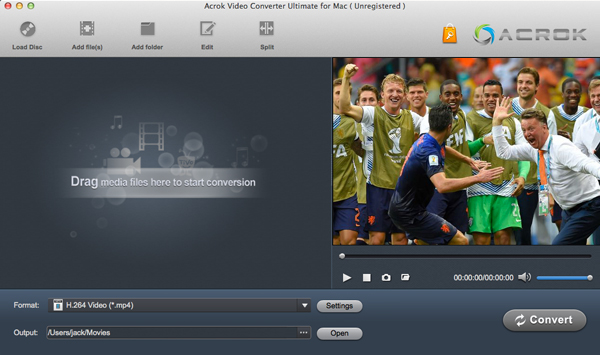
3. Click the format column, and you can choose the output format you need. To convert .R3D to ProRes MOV for FCP X, please choose Final Cut Pro → Apple ProRes 422 (*.mov) as the output format. This format is well supported by Final Cut Pro in any version. You can also choose Apple ProRes 422 LT, HQ, Proxy, or Apple ProRes 4444 according to your needs.
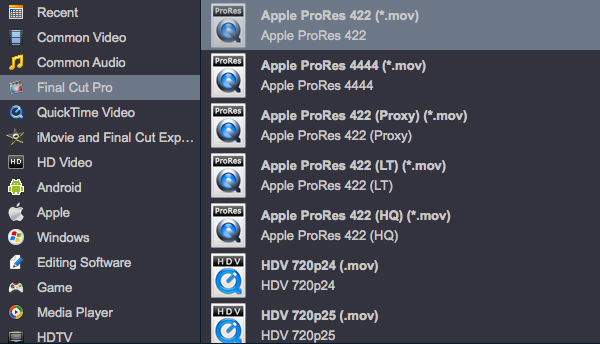
4. Before you convert .R3D to ProRes MOV for Final Cut Pro, you can adjust the output parameters, such as resolution, bitrate, frame rate, video codec, or others. If you don’t need to adjust anything, you can skip this step.
5. Click the “Convert” button on the main interface of this Red R3D 4K video converter. The software will convert R3D to ProRes MOV for Final Cut Pro.
When your R3D files are converted by this Red R3D video converter, you can get the videos and import them into Final Cut Pro. Now you can edit 4K video with Final Cut Pro on Mac smoothly; there will be no problems anymore. Hope this 4K video converter can help you – just try it!

No responses yet