Can’t import MP4 files to Vegas Pro 23 – Solved
Magix Vegas Pro 23 does support MP4 file format. But why don’t MP4 files work properly in Vegas Pro 23? And what’s the best way to fix MP4 and Vegas Pro 23 incompatibility issue? Read on to find the reasons and solutions.
Many users are puzzeled by one thing that some files with MP4 file extension can’t be imported into Vegas Pro. Although Magix claims that Vegas Pro 13 and above offer native support for MP4 format, you may still meet the error messages like, “File format not supported”, “Unsupported format or damaged file”, “Vegas Pro is unable to open the file on disk”, “Codec missing or unavailable” and “32-bit QuickTime support ending”. Or, Vegas Pro Pro only import audio from MP4 files for you.
If you are currently using an older version of the Magix, maybe an upgrade of the Adobe version could help. What if you still can’t import your MP4 files to Vegas Pro with many unsuccessful attempts? And what’s the best solution to fix the MP4 in Vegas Pro 23 error? Read on to unlock the answers!
Why Vegas Pro 23 Not Import Some MP4 Files?
MP4 file format seems to be one of the widely-supported native video formats and Magix Vegas Pro offers native support for MP4 files. But why sometimes you can’t import a .mov clip into Vegas Pro? Actually, there are 3 possible reasons that may cause file import failure: your MP4 video file got problem, your Vegas Pro software got problem, or your computer got problem. To pin down what exactly goes wrong, you need to do the troubleshooting one by one.
Reason 1. Your MP4 files are corrupted
You can check whether your MP4 file can be recognized and played properly using other programs. If not, repair it using a professional video repair tool.
Reason 2. Wrong settings in Vegas Pro
If all files with .mp4 file extension can’t be imported into Vegas Pro, while all others in MKV, MOV, etc load correctly, there might be setting mistakes in your Vegas Pro. To fix the problem, try restart Veags Pro, computer or renderer, or update Vegas Pro or Graphics Drive to have a try.
Reason 3. Vegas Pro doesn’t support the codecs inside MP4
MP4 is a multimedia container format which contains various types of data encoded using one of several codecs. Though Vegas Pro does support MP4 file container, the codecs inside MP4 determines whether Vegas Pro can work properly with the MP4 files. In detail, the MP4 codec issues are complex depending on the source video, Vegas version, and system version.
It is quite intricate for each person with their own OS versions, Vegas Pro versions, system configurations, and how the original video is encoded. But broadly speaking, codec incompatibility is the major reason for Vegas Pro won’t load .mov files. And transcoding the file is the easy and efficient solution to solve the problem.
Solution 1. Convert MP4 to Vegas Pro 2Compatible Formats
The MP4 container can use MPEG-4, MJPEG, H.264, HEVC, GoPro CineForm, or other video codec for compression. As the analysis above, if Vegas Pro 23 doesn’t support the codecs inside MP4 files, you will probably experience MP4 importing error. Converting the mov file to another is an efficient yet 100% working solution. To do this, you can adopt Handbrake for help. If you don’t have that tool or can’t convert the problematic MP4 files to the desired format with Handbrake, you can also try an easier-to-use yet more powerful video encoder and decoder – Acrok Video Converter Ultiamte (it also has a Mac version here).
This program is able to work with various MP4 videos, no matter what codecs are wrapped in and no matter what devices record. And it can help fast convert MP4 and any other Vegas Pro incompatible video files to a format that works natively in Vegas Pro 23, 22, 21, etc. Codec correction or format conversion is just the tip of the iceberg that it can handle. In terms of the compute-intensive 4K MP4 files, it’s also a decent performer, letting you downscale 4K to 1080p, lower 60FPS to 30FPS, adjust bit rate, etc. to better suit your computer hardware configurations and to ensure a smooth MP4 importing and latter editing.
To solve the MP4 or other video incompatible issues, free download and install Acrok Video Converter Ultiamte on your PC or Mac computer, and follow the detailed steps below.
Step 1. Download and launch Acrok Video Converter Ultimate on Windows PC or Mac. Click Add File to import your MP4 video. Dragging and droppping works too. (Note: batch conversion is supported, so you can several mov videos to the program to convert at a time.)
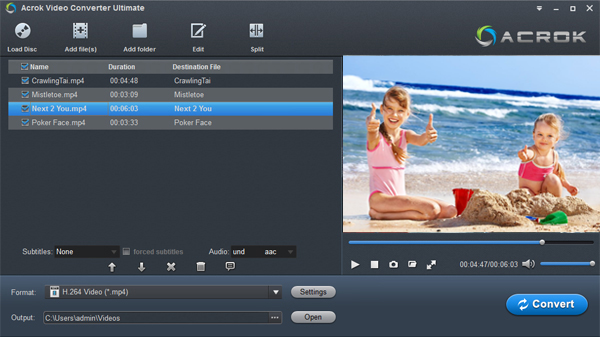
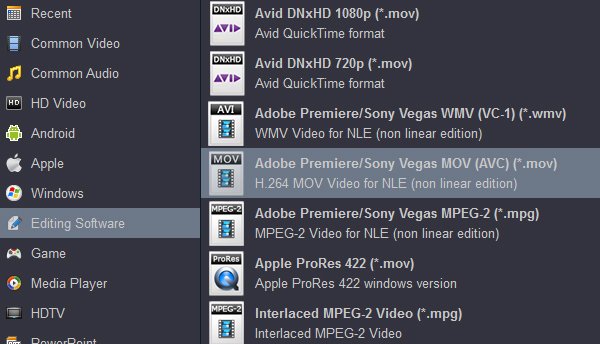
Step 2. Click the Format bar at the bottom. Choose a format preset that Vegas Pro can support. And MOV (encoded by H264) from Editing Software category is recommended since the output MOV H.264 files can preserve image quality with the smallest file size. You can also choose MPEG-2 or WMV as the output file.
Step 3. Hit Convert and it will begin fast video decoding, conversion and processing your MP4 video at one go.
After the conversion is complete, get the resulted files via clicking the Open button and then you can import the result files to Magix Vegas Pro 23, 22, 21 or lower version without any trouble.
Solution 2. Rename the File Extension
Changing the extension name is another solution. You can rename the file extension from .mp4 to .mov, .wmv, or other format. However, it isn’t guaranteed to work. Some people still can’t load MP4 files to Vegas Pro 23 successfully:
“I changed it to both avi and mp4. MOV has an audio sync issue and avi pops open a window with a damage or unsupported format.”
“Can import now but just hear the sound and can’t see video coz it gone green!”
“I’m still not able to import file it’s showing some ‘the Importer reported a generic error’.”
The possible reason why it works is the source codec just happens to be supported by the renamed container. In most cases, however, not all the containers support the codec that is used to encode your source MP4 file. Plus, the metadata and other data such as subtitles may be damaged.
Solution 3. Check for Missing Codecs (Install QuickTime or required codec)
If the reason that your Vegas Pro 23 can’t read your MP4 files is that required codec isn’t installed on your laptop, you can intall the codec on it by determing what codec was used to encode the MP4 video. QuickTime comes with many popular and general-purpose codecs, so installing QuickTime may be able to resolve the MP4 import error caused by the missing codec. After installing QuickTime, restart your Vegas Pro 23 and check if it can import MP4 video files now.
Important Notice:
QuickTime has been officially discontinued on Windows so there supposedly is a security risk. Windows 11/10 users may find it doesn’t work. This is because Windows 11/10 does more security things than Windows 7 and Windows 8.1 do.
If you can’t install QuickTime or still can’t import MP4 to Magix Vegas Pro after installing QuickTime, you can download and install required codec from established sources to have a try. For example, if you find out that the your MP4 has a NewTek SHQ3 (4:2:2:4) codec, you are able to find the codec from Updates and Downloads under the section called Codecs and Utilities, install it, reboot, and boom. Then, the MP4 files may be imported perfectly into Vegas Pro. Before doing that, you’d better backup all your files because installing a new codec typically causes some video or audio files to become unreadable. One more thing, Vegas Pro suggests not downloading codec pack software to avoid codec conflicts.
Conclusion
If you encounter Vegas Pro 23 MP4 file import failure issue, it’s probably caused by missing codecs or the codec inside MP4 is not supported. Therefore, the easiest and most effective solution recommended by us is to convert the MP4 file. You can use Vegas Pro 23’s export feature to convert the file to another format. You can also use a third-party video converter, such as Handbrake or Acrok Video Converter Ultimate.