

MP4 to Vegas Pro 23 workflow – Edit MP4 in Vegas Pro 23
Struggling to import MP4 files into Vegas Pro 23? Learn why some MP4s fail to load and how to fix it. Step-by-step guide using Acrok Video Converter Ultimate to convert unsupported videos into a fully editable format – no more crashes or missing streams.
What Is Vegas Pro 23?
VEGAS Pro 23 is a professional non-linear editing (NLE) software developed by VEGAS Creative Software, building upon the legacy of the classic Sony Vegas line. Released in September 2025, this version introduces a re-engineered architecture centered around the VEGAS Core Engine, which delivers significantly improved GPU-accelerated performance for color grading, timeline playback, and multi-track editing. The software supports Windows 11 (including ARM-native devices) with recommended specifications such as an 8th Gen Intel Core i5 or AMD equivalent, 16GB of RAM (32GB for 4K projects), and an NVIDIA GeForce RTX or GTX 10XX series GPU with 8GB VRAM.
Notable new features in Vegas Pro 23 include AI Smart Mask 2.0 for object detection and background replacement, a fully dockable and redesigned Color Grading Panel with ACES 1.3 support, timeline-integrated OFX animation for keyframing VFX effects, an updated rendering dialog, and a modern audio equalizer.
Why Does Vegas Pro 23 Fail to Recognize Some MP4 Files?
Although MP4 is listed among Vegas Pro 23’s supported import formats, users often encounter issues when trying to load specific MP4 files. This is because MP4 is merely a container format; its internal video and audio streams can be encoded using various codecs. If the codec used is not fully supported by Vegas Pro, the import will fail with errors such as “can’t open MP4 file,” “Vegas Pro 23 crashing when importing MP4,” or “The file has no audio or video streams”.
Common causes include:
- Incompatible video or audio codecs: Vegas Pro may struggle with MP4 files containing MP3 or FLAC audio streams, or video streams encoded in unusual or unsupported profiles.
- High-bit-depth and color sampling: Vegas Pro’s hardware decoders have limited support for certain H.264 and HEVC formats. For instance, while 4:2:0 8-bit is fully accelerated, formats such as 4:2:2 or 4:4:4 chroma subsampling at 10-bit often fall back to software decoding (or fail entirely) without the proper hardware configuration.
- File size and resolution: Very large files or 4K/8K HEVC video may exceed the software’s capabilities depending on your system hardware.
- Corrupted or damaged MP4 file: Poorly encoded or incomplete files can also cause import failures.
The Solution: Convert Your MP4 Files Using Acrok Video Converter Ultimate
The most reliable and straightforward way to resolve MP4 import issues in Vegas Pro 23 is to transcode the problematic files into a format the software fully supports. Instead of manually testing different codec combinations, you can use a dedicated video conversion tool.
Acrok Video Converter Ultimate is a comprehensive conversion software that supports loading 8K/6K/4K/Full HD videos in formats like MP4, MKV, AVI, and WMV, and converting them to virtually any desired format. It includes optimized presets specifically designed for Sony/VEGAS Pro, ensuring your output files are immediately compatible with versions 23, 22, 21, and lower without further adjustment. The software maintains output video quality with up to 98% preservation of the original, and it also includes built-in editing tools for trimming, cropping, merging, and watermarking.
Step-by-Step Guide to Convert MP4 for Vegas Pro 23
Step 1: Add Your MP4 File(s)
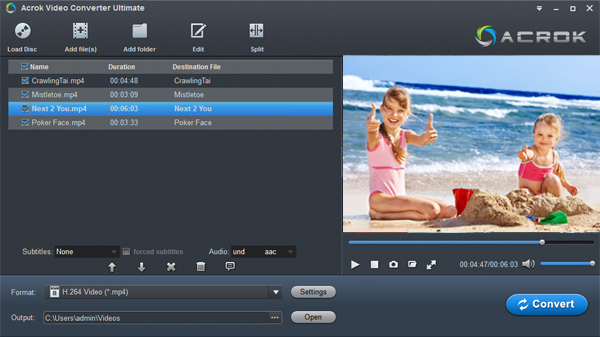
Launch Acrok Video Converter Ultimate. Click the “Add Video” button, or simply drag and drop your problematic MP4 files directly into the interface. Batch conversion is supported, so you can process multiple files at once.
Step 2: Choose the Vegas Pro Optimized Output Format
Click the “Format” drop-down menu. Navigate to the “Adobe Premiere/Son..” category and select “MOAV (AVC)(*.mov)” – this preset is specially optimized for Vegas Pro and ensures smooth import.

Step 3: Trim/Split/Merge/Crop MP4 Files (Optional)
- If you want to trim the video, open the “Video Editor” window and switch to the “Trim” tab. Drag the slider bars to select the segment you want to keep, then set the start and end points using the bracket buttons.
- To merge multiple clips, simply check the “Merge into one file” option on the main interface.

Step 4: Convert and Import
Click the “Convert” button to start the transcoding process. Once finished, navigate to the output folder, and drag the converted MOV files directly into your Vegas Pro 23 timeline. The video will now import correctly with both audio and video streams intact.
Conclusion
Transcoding incompatible MP4 files with Acrok Video Converter Ultimate is a permanent, hassle‑free solution that eliminates codec‑related errors in Vegas Pro 23. This approach offers several distinct benefits:
- Universal compatibility: No more guessing which codecs Vegas Pro will accept. The optimized presets guarantee error‑free import every time.
- Preserved quality: With up to 98% quality retention, your footage remains professional‑grade after conversion.
- Time‑saving batch processing: Convert multiple files in one go, allowing you to focus on creative editing rather than troubleshooting technical glitches.
- Additional editing tools: Built‑in trimming, cropping, and merging capabilities let you prepare clips even before they reach your timeline.
By taking a few minutes to convert your MP4 files before editing, you can avoid crashes, missing video streams, and other frustrating problems — ensuring a smooth and efficient workflow in Vegas Pro 23.
