Play Blu-ray movies on iPhone 17 (e, Pro, Pro Max)
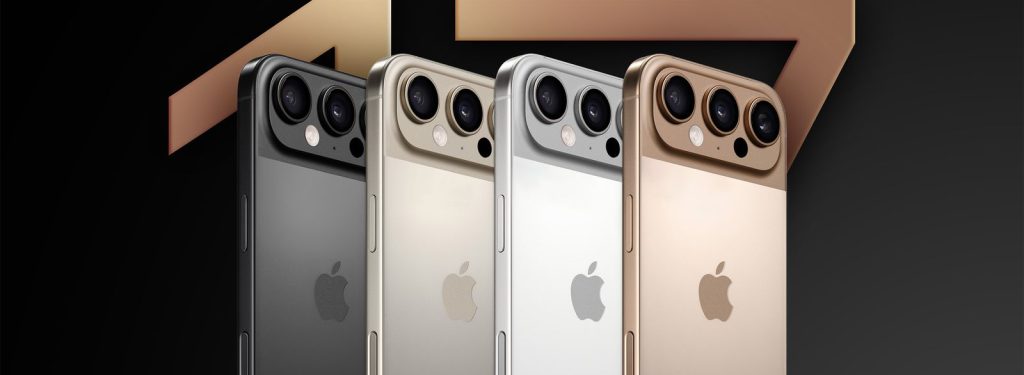
The iPhone 17 continues Apple’s tradition of delivering a stunning display and powerful performance, making it an ideal device for watching high‑definition movies. However, playing physical Blu‑ray discs directly on an iPhone is not possible out of the box, because the iPhone 17 series lacks an optical drive. Fortunately, there are several reliable ways to enjoy your Blu‑ray collection on the go. This guide will walk you through the best methods, from using external hardware to converting disc content into digital files.
1. Understand iPhone 17 Video Formats
Before you begin, it helps to know which video formats the iPhone 17 series natively supports. The device plays HEVC (H.265), H.264, MP4, MOV, and M4V files. Blu‑ray discs typically use AVC (H.264), VC‑1, or MPEG‑4 AVC inside an M2TS container. While the video codec may be compatible, the container and the disc’s copy protection (AACS and BD+) are not. Therefore, achieving smooth iPhone 17 (e, Pro, Pro Max) Blu‑ray playback requires either real‑time conversion or file transcoding.
2. Use an iPhone 17 (e, Pro, Pro Max) External Blu-ray Drive
The most direct method to play Blu-ray on iPhone 17 is to connect an external Blu‑ray drive. Thanks to the iPhone 17’s USB‑C port (which supports external storage and USB host mode), you can attach a portable Blu‑ray drive using a USB‑C to USB‑A adapter or a native USB‑C drive. However, you will also need a dedicated playback app from the App Store that can read Blu‑ray structures and decrypt discs on the fly.
Step‑by‑step:
- Purchase a USB‑C external Blu‑ray drive (e.g., Archgon, LG, or Buffalo).
- Connect the drive to your iPhone 17 (e, Pro, Pro Max) via the USB‑C port.
- Install a Blu‑ray player app such as VLC for Mobile (free) or nPlayer (paid). VLC can read some unencrypted Blu‑ray folders, but for encrypted commercial discs you may need an app with built‑in decryption – these are rare on iOS due to legal restrictions.
- Insert the Blu‑ray disc and open the app. Navigate to the drive’s volume and select the main movie file (usually under
BDMV/STREAM/). If the disc is encrypted, this method will fail without additional software.
Because most commercial Blu‑rays are encrypted, the iPhone 17 external Blu-ray drive approach works best for home‑burned or non‑encrypted discs. For studio‑released movies, you will need to first remove the encryption.
3. Convert Blu-ray to iPhone 17 – The Recommended Method
The most practical and reliable way to watch Blu-ray on iPhone 17 series is to convert your discs into a digital file that the iPhone can natively play. This process is often called “ripping”. You will need a computer with a Blu‑ray drive, plus ripping and conversion software.
Tools you need:
- A computer (Windows or Mac) with an internal or external Blu‑ray drive.
- Acrok Video Converter Ultimate – to decrypt and rip the main movie into an iPhone‑friendly MP4 file.
Step‑by‑step to rip Blu-ray for iPhone 17 series:
Step 1: Install Acrok Video Converter Ultimate on your computer.
Step 2: Insert the Blu‑ray disc. Open this Blur-ray to iPhone Converter, select the disc, and choose the main title (usually the longest one). Deselect unwanted audio tracks and subtitles.
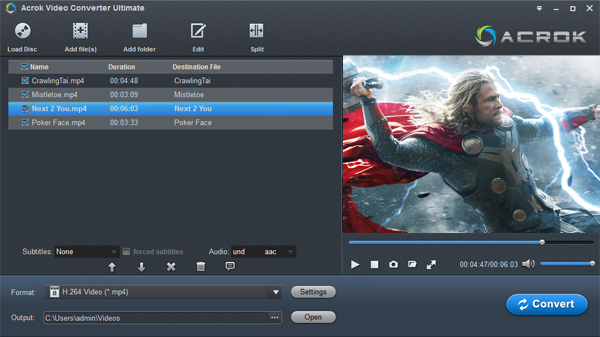
Step 3: Play the loaded movies with Acrok software.
Step 4: Under the “Foramt” tab, set the output format to MP4. Under “Apple”, select H.265 (HEVC) for the best quality‑to‑size ratio – the iPhone 17 series’s A19 chip handles HEVC effortlessly.
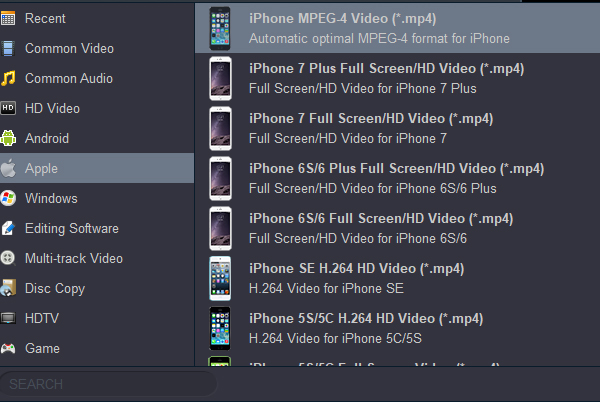
Step 5: Start the conversion. The result will be a compact MP4 file that you can transfer to your iPhone 17 (e, Pro, Pro Max) via AirDrop, iCloud Drive, or a USB‑C cable.
This process effectively achieves Blu-ray to MP4 iPhone 17 conversion, preserving excellent picture quality while reducing file size.
4. Use a Media Server for Direct Streaming
If you prefer not to store large files locally, you can set up a media server on your computer (e.g., Plex, Jellyfin, or Emby). First, convert Blu-ray to iPhone 17 (e, Pro, Pro Max) friendly MKV or MP4 files using the method above. Then add those files to your Plex library. On your iPhone 17 (e, Pro, Pro Max), install the Plex app and stream the movies over your home Wi‑Fi or even remotely. The server will transcode on the fly if needed, ensuring smooth play Blu-ray on iPhone 17 (e, Pro, Pro Max) without taking up storage space.
5. Important Legal and Practical Considerations
- Encryption and copyright: In many countries, circumventing Blu‑ray copy protection (AACS) is legal only for personal backup of discs you own. Do not share ripped files.
- Time and storage: A full Blu‑ray rip can be 25–50 GB. After converting to HEVC, a two‑hour movie shrinks to 4–10 GB. Make sure your iPhone 17 has enough free space (models start at 256 GB in 2026, but 512 GB is recommended for movie collectors).
- External drive limitations: Even if you find a powered USB‑C Blu‑ray drive, the iPhone 17 (e, Pro, Pro Max) may not supply enough power for burning or sustained reading. Use a self‑powered drive (with its own AC adapter) to avoid disconnections.
Conclusion
While you cannot simply insert a Blu‑ray disc into the iPhone 17 (e, Pro, Pro Max), you have several powerful options. For occasional use and non‑encrypted discs, an iPhone external Blu-ray drive paired with VLC works. For the best balance of convenience and quality, convert Blu-ray to iPhone 17 (e, Pro, Pro Max) using Acrok Video Converter Ultimate, creating MP4 files that respect iPhone 17 series supported video formats. You can also rip Blu-ray for iPhone 17 (e, Pro, Pro Max) once and then stream via Plex. With these methods, you can finally watch Blu-ray on iPhone 17 (e, Pro, Pro Max) anytime, anywhere, enjoying your movie collection on Apple’s most advanced mobile screen.